

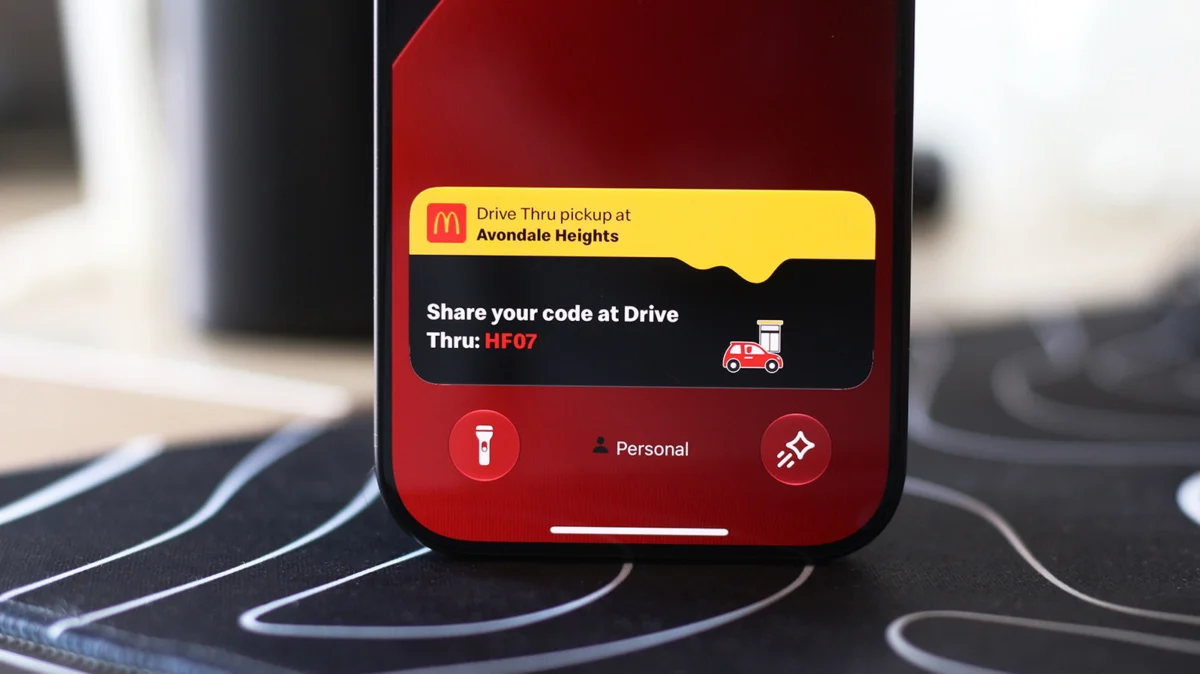
In the modern digital landscape, the constant barrage of notifications can often feel like a distraction rather than a tool for productivity. However, Apple has engineered a solution that bridges the gap between passive notifications and active app engagement: Live Activities. By transforming the once-static "Dynamic Island" and the iPhone Lock screen into dynamic dashboards, Apple allows users to keep a finger on the pulse of their digital life without the friction of repeatedly opening and closing applications.
The Evolution of the Dynamic Island
To understand the utility of Live Activities, one must first look at the hardware evolution that birthed them. When the iPhone 14 Pro was unveiled, the tech industry took note of a distinct departure from the design language of the era. While Android manufacturers had largely gravitated toward minimal hole-punch cutouts, Apple embraced a bold, pill-shaped cutout.
This design choice was not merely an aesthetic preference; it was a functional necessity. To house the sophisticated TrueDepth camera system and the array of sensors required for Face ID, Apple needed more physical space than a standard hole-punch could provide. Rather than attempting to disguise this hardware with dark wallpapers, Apple chose to integrate the cutout into the software experience.
The result was the Dynamic Island. This interface element cleverly expands and contracts, turning a hardware constraint into a hub for system alerts, background activities, and real-time data feeds. This innovation set the stage for Live Activities, which serve as the primary content engine for the island, providing a seamless, glanceable experience for timers, navigation, sports scores, and beyond.
How to Enable and Optimize Live Activities
While Live Activities are designed to be "always on" by default, users occasionally encounter scenarios where specific applications fail to report their status. Ensuring this feature is correctly configured requires navigating two distinct layers of iOS settings.
Individual App Management
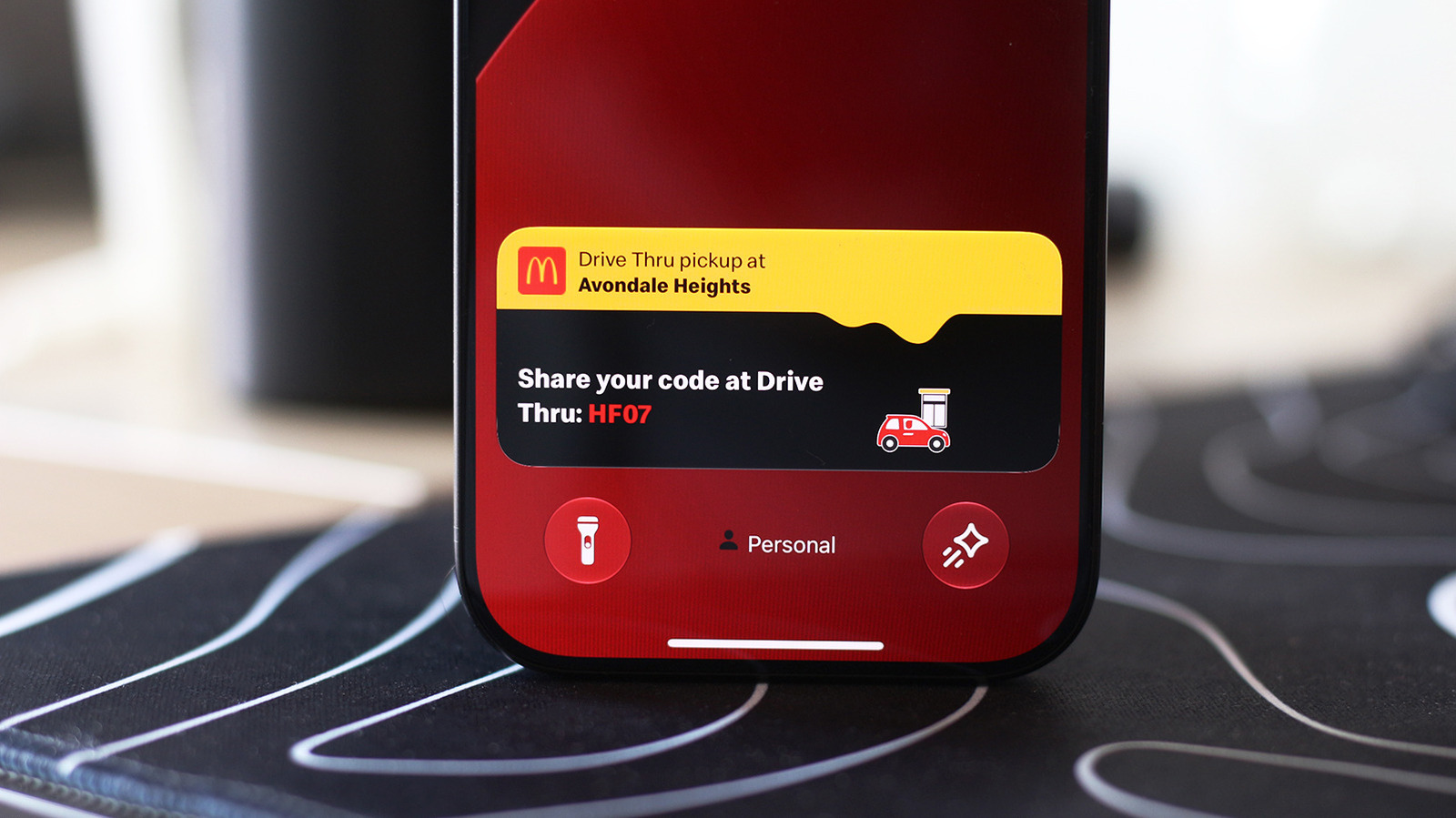
If you notice that a specific app—such as a food delivery service or a ride-sharing platform—is failing to update, you should first check its individual permission settings.
- Open the Settings app on your iPhone.
- Scroll down to find the specific app in the list.
- Tap on the app and ensure the Live Activities toggle is switched to the "On" position.
It is important to note that while Live Activities operate independently of standard push notifications, they are often linked. If you find the feature is still not behaving as expected, ensure that general notifications for that app are also enabled, as some apps rely on notification permissions to trigger the initial Live Activity feed.
Lock Screen Permissions
Live Activities are not limited to the Dynamic Island; they provide persistent information on your Lock screen, allowing for quick checks without requiring a full device unlock. To ensure this functionality is active:
- Navigate to Settings > Face ID & Passcode.
- Authenticate with your passcode.
- Scroll to the Allow Access When Locked section.
- Confirm that the Live Activities toggle is enabled.
Extending the Experience to the Dashboard: CarPlay
The integration of Live Activities extends far beyond the handheld device. For many users, the car is a primary environment where "glanceable" information is essential. CarPlay leverages the iPhone’s processing power to surface these real-time updates on your vehicle’s infotainment screen, significantly reducing the need to reach for a phone while driving.
Managing CarPlay Live Activities
Live Activities typically appear automatically on the CarPlay Dashboard—the split-screen view that organizes navigation, media, and suggestions.
- For Split-Screen View: The Live Activity will appear in the dashboard layout.
- For Full-Screen Apps: If you are navigating with a map app in full-screen mode, Live Activities will appear as subtle, non-intrusive banners at the bottom of the display.
If these updates are not appearing in your vehicle, verify the following:
- CarPlay Settings: Access the Settings app directly through the CarPlay interface. Ensure that Live Activities is toggled on.
- Suggestions: Ensure Suggestions in CarPlay (or Suggestions in Dashboard) is enabled, as these settings often dictate the visibility of secondary data feeds.
- Driving Focus: Be aware that if your iPhone is set to "Driving Focus," certain alerts may be suppressed to minimize distractions. If you need critical, time-sensitive updates, you may need to adjust your Focus filter settings.
Supporting Data and User Behavior
The shift toward Live Activities represents a broader trend in mobile computing: the move toward "asynchronous interaction." According to recent UX research, the average smartphone user checks their device dozens of times a day, often for repetitive tasks—checking a timer, tracking a package, or waiting for a ride. By offloading these tasks to the Dynamic Island and Lock Screen, Apple has effectively reduced the "cognitive load" on the user.
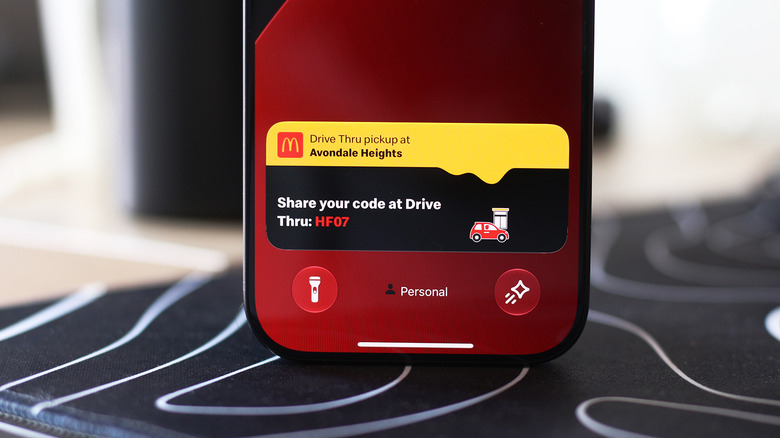
Third-party developers have also embraced this transition. Apps like Uber, Flighty, and various sports trackers have reported higher user satisfaction scores since the introduction of Live Activities. By eliminating the "unlock-app-check-close" loop, these apps have created a more fluid, frictionless user experience.
Official Stance and Future Implications
Apple has been clear in its documentation that Live Activities are designed to be ephemeral. They are intended to provide value only when an event is occurring. Once a flight has landed or a food order has been delivered, the system automatically terminates the activity, preventing the clutter that would otherwise accumulate on a user’s interface.
Looking forward, the integration between hardware and software continues to tighten. With rumors of future iterations of the iPhone Pro series featuring even smaller Dynamic Island cutouts, Apple is signaling that this "island" is a permanent fixture of their design philosophy. The goal is clear: to make the device feel less like a tool you have to "operate" and more like a companion that surfaces the right information at the exact moment it is needed.
Conclusion: A New Standard for Connectivity
The ability to manage Live Activities on both your iPhone and your vehicle’s CarPlay display is a testament to the power of a unified ecosystem. Whether you are monitoring the progress of a cross-country flight or simply keeping an eye on a kitchen timer, the ability to access this data without interrupting your current workflow is a significant advancement in mobile usability.
By taking a few minutes to verify your settings and understand how these features interact with your driving environment, you can transform your iPhone from a simple communication device into a highly efficient, real-time command center. As technology continues to advance, the boundary between the apps we use and the devices we carry will continue to blur, making these glanceable, real-time updates an indispensable part of the modern digital experience.
